ID Photo Studio
One photo, any white, blue, or red background
ID Photo Studio
One photo, any white, blue, or red background
Showcase
Description
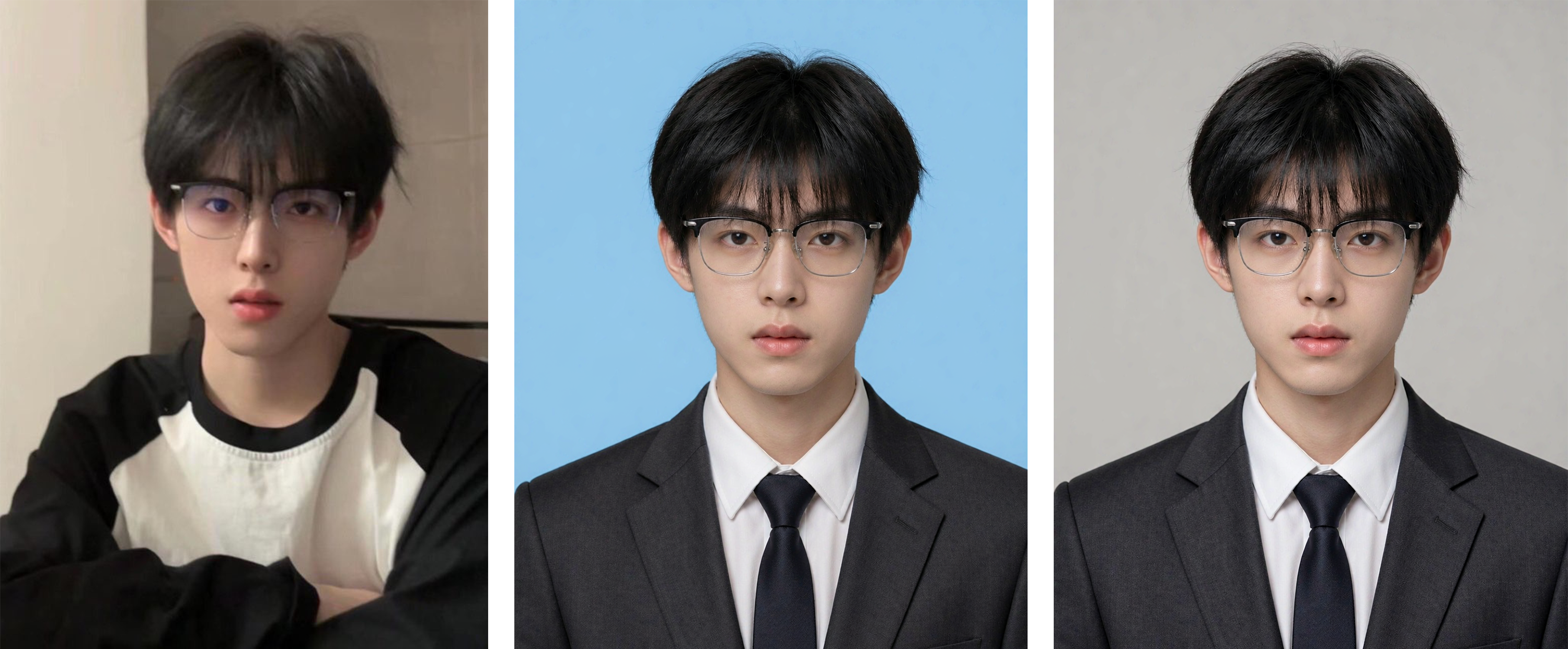
ID Photo Studio: Upload a casual photo to create a formal ID photo with any background color—white, blue, red, dark red, or gray. It automatically changes casual clothing to a dark suit and white shirt, uses standard ID photo positioning and composition, and keeps your face exactly as it appears in the original photo. Trigger it when users say things like “ID photo,” “make an ID photo,” “white-background ID photo,” “blue-background 2-inch photo,” “resume photo,” “passport photo,” “turn this into an ID photo,” “change the background color,” or “1-inch/2-inch photo.” Core rules: removing blemishes is allowed, but changing facial features is not (for official verification); choose the background color before the clothing (to avoid color clashes); place the eyes on the upper-third line, keep both shoulders level, leave space above the head, and use a clean background without shadows. Default format is vertical 3:4, with customization available. Use Nano Banana 2.1 by default for the strongest identity preservation; do not use Midjourney. Supports generating multiple colors, including white, blue, and red, in one run.
Recommended by
Dancang
Why we love this skill
Turns casual photos into compliant ID photos with accurate identity preservation, smart background and clothing matching, standard sizing, and consistent white, blue, and red options.
Related Skills
View all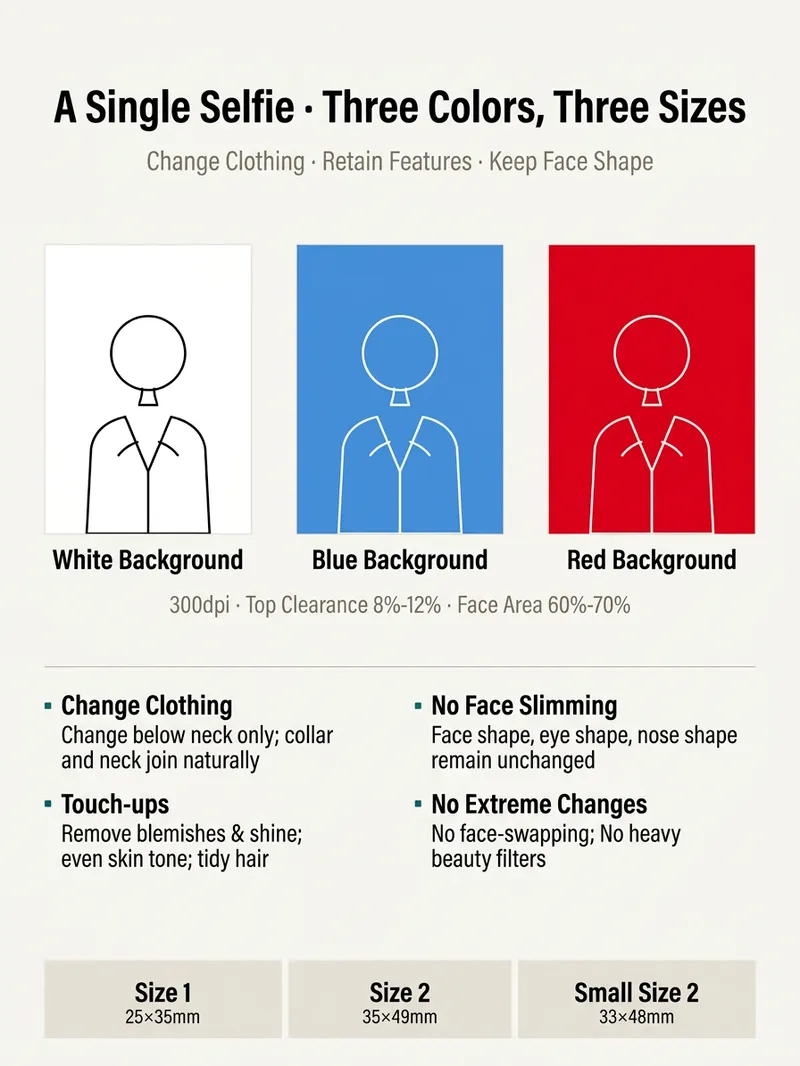
ID Photo Outfit Swap
For applications, official documents, or resumes, you may suddenly need an ID photo with no time to visit a photo studio—and a selfie may not meet the requirements. 【ID Photo Outfit Swap】 turns a front-facing selfie into a standard ID photo: choose a solid-color background (white, blue, or red), change into formal attire (suit, shirt, or professional jacket), crop it to 1-inch, 2-inch, or small 2-inch size, and remove obvious glare and blemishes while preserving your real facial features. Strict rules: facial features and face shape are not changed, skin is not smoothed to the point of looking unnatural, and no “face swap” is performed. If the final image does not meet official requirements, this will be clearly noted.
 Image
ImagePolished ID Photos
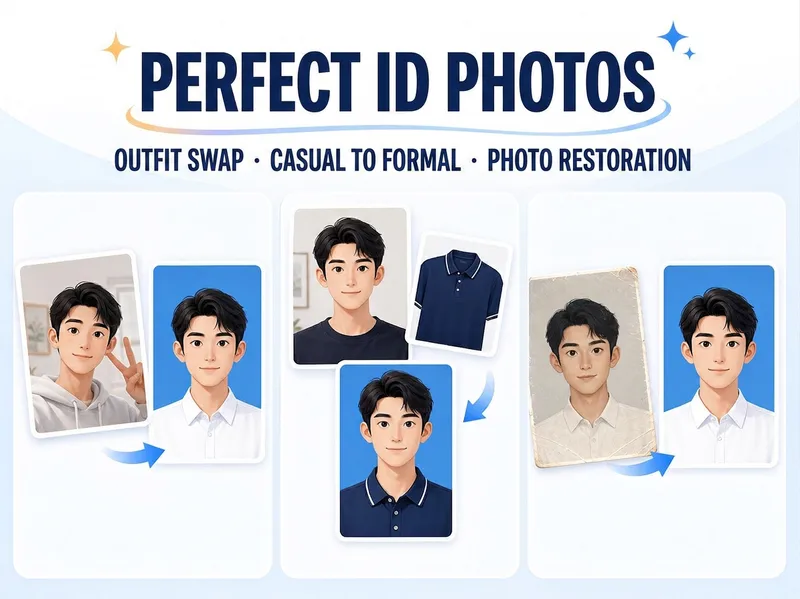
Just upload one clear photo—no need to specify a purpose or parameters first. Selfies and casual snapshots can be turned into formal one-inch photos with a blue background. You can also upload a separate clothing photo as an outfit reference, or adjust the background color, lighting, crop, and dimensions of an existing ID photo. Once you’re satisfied with the first image, create white-background, red-background, two-inch, specified-pixel, or six-inch print layouts as needed, avoiding a pile of images you don’t need.
 Image
ImagePhoto Restoration Studio
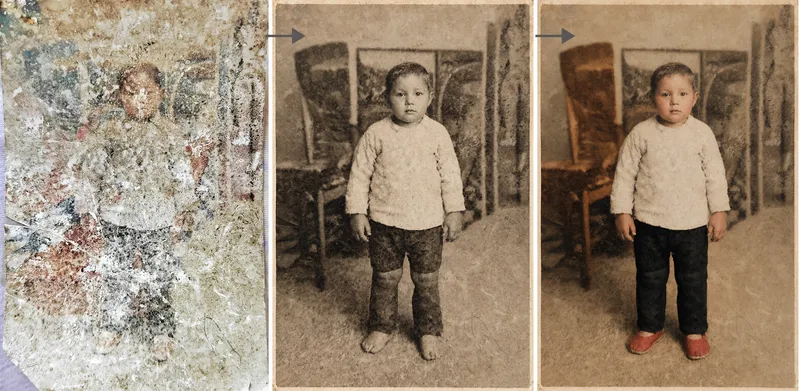
Old photo restoration specialist: upload an old photo of people, buildings, plants, or animals to repair damage—scratches, creases, mold, stains, fading, and missing areas—and add historically appropriate color while strictly preserving the original composition, number of people, expressions, and image dimensions. Trigger it when users say “restore an old photo,” “colorize an old photo,” “can this badly damaged photo be repaired?”, “colorize a photo of my grandparents,” “can you remove the scratches?”, “make an old photo clearer,” or “restore a family photo.” Core rule: restoration is subtraction, not addition—remove damage without adding content, and make the edit as invisible as possible. Faces are the only acceptance standard; colorization is a reasonable estimate, not a fact; the image dimensions must exactly match the original. By default, the output dimensions match the uploaded photo. Nano Banana 2.1’s high-fidelity reference image mode is preferred; Midjourney is disabled. For severe damage, use a two-step process: restore first in black and white, then colorize.
Information
- Version
- v2
- Last updated
- Runtime credits
- Usage-based
- Models
- Auto