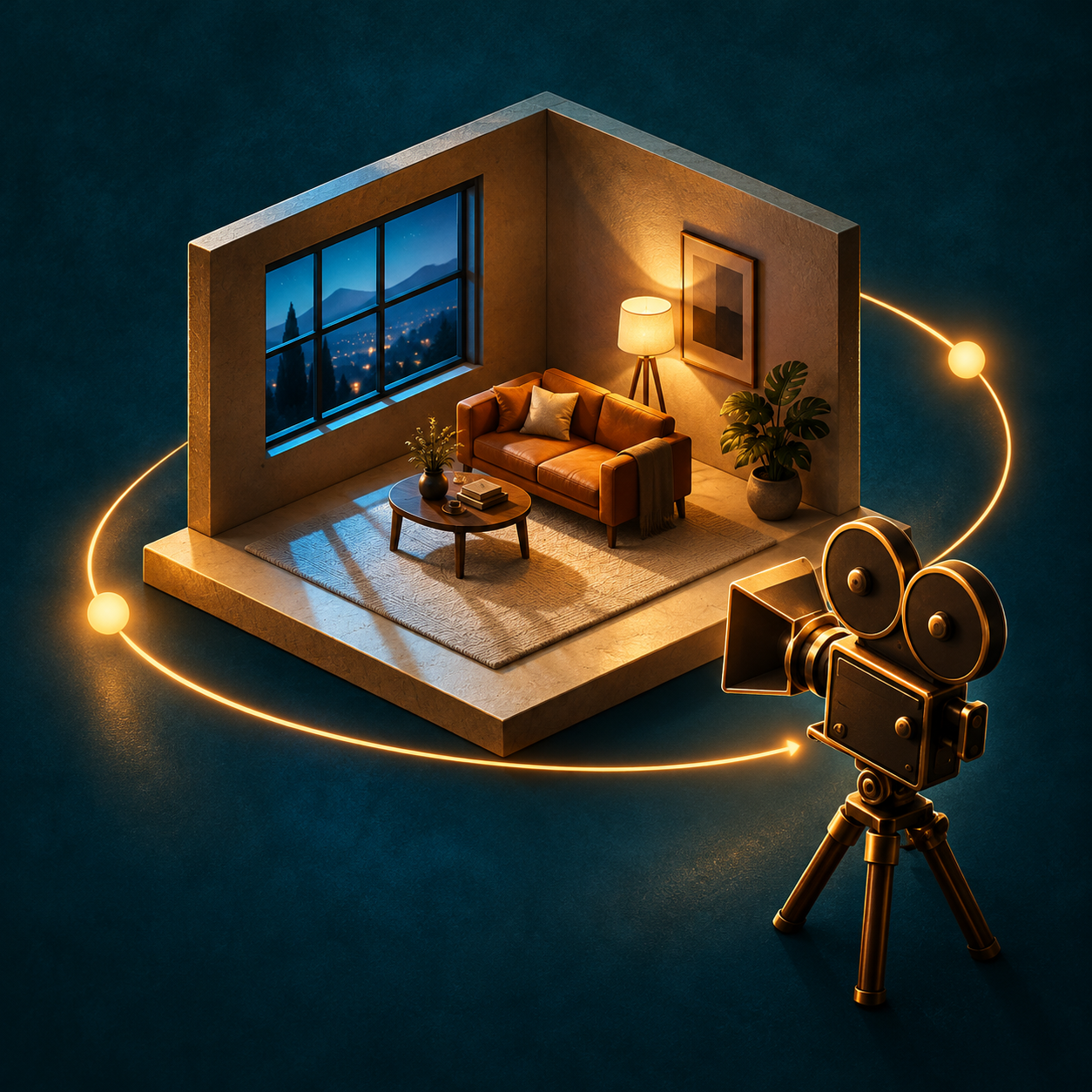
Scene Anchor Studio
Set space first, then plan six shots
Scene Anchor Studio
Set space first, then plan six shots
Showcase
Description
Turn a scene description, reference image, or sketch into a spatial plan and six camera-shot prompts built around one shared layout. Place doors, windows, furniture, and key props in a common coordinate system. Define materials, atmosphere, light direction, and the relationships that later shots should preserve. When you request image generation, create a text-free 45° cutaway scene reference to inspect and refine the space. Your kit includes a scene brief, fixed spatial anchors, a cutaway reference when requested, six feasible shot prompts, and targeted drift-repair instructions. Each shot specifies camera position, viewing direction, framing, visible elements, occlusion, and continuity constraints. The shot prompts form a production plan for further image or video creation. Explore original locations such as a rain-night record shop, a mountain bakery, or a seaside pottery atelier. Use the kit for AI short-film planning, calming visual stories, product narratives, and multiple views of a recurring location. Bring an existing scene to identify shifted furniture, flipped windows, or changed lighting and receive correction prompts. Output follows your input language by default. Chinese and English output is available on request.
Recommended by
Dancang
Why we love this skill
Locks in doors, furniture, lighting, and world coordinates before planning six actionable shots in the same space, significantly reducing scene drift while balancing spatial continuity and generation quality.
Best for
Creators who need to plan continuous multi-shot scenes, short films, or product narratives for a single location.
How to use this Skill
Provide your input
Provide a scene description, reference image, or sketch, and optionally specify window and door positions, must-have props, aspect ratio, and purpose.
Run the Skill
The tool organizes spatial anchors, lighting, and layout, generates a main scene reference image when requested, and plans six camera shots in the same space.
Review your result
Receive scene settings and anchor info, a main scene reference image if requested, and six camera shot prompts for subsequent creation.
Related Skills
View all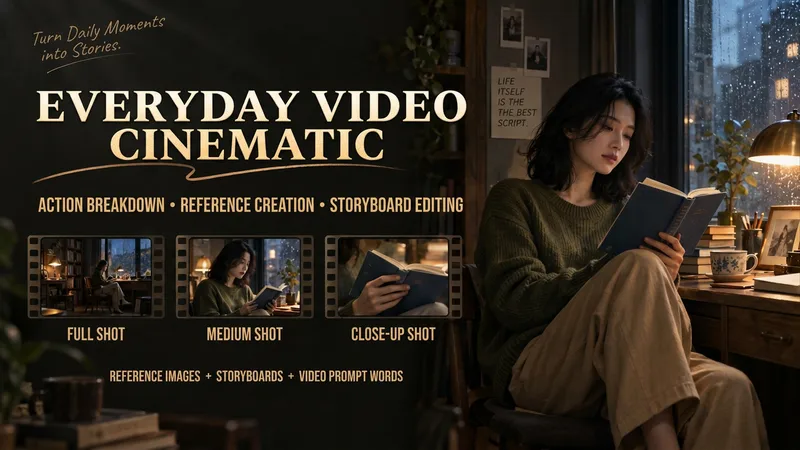
Make Everyday Video Cinematic
Provide everyday footage, ordered keyframes, or action descriptions, and tell it the mood you want. The basic deliverables are an event chain, cinematic storyboard, reference-material mapping, platform-neutral video-generation prompts, and review notes. Reading the original video, creating reference images, and generating the finished video continue according to the tools supported in the current environment. This version has not yet been fully tested with complete tasks in YouMind. The Skill first separates confirmed visual information, user-provided details, and unknown elements. It organizes the people, settings, and key objects, then redesigns the shots, pacing, lighting, and color. When it cannot read the footage, it guides you to provide keyframes and action descriptions. It focuses on checking whether people change appearance, whether extra props appear, whether action cause and effect is altered, and whether positions still connect after a cut. It is suited to everyday creators who want to give life moments, pet stories, and small shop stories a stronger narrative feel. When the environment supports image generation, it directly creates and checks reference images. When it supports a video-generation tool with the relevant reference inputs, it can continue to generate and review a short clip. Without the corresponding tools, it clearly delivers the completed plan and materials for external generation. Actual image and video generation capabilities, available parameters, and resource usage depend on the current environment.
 Image
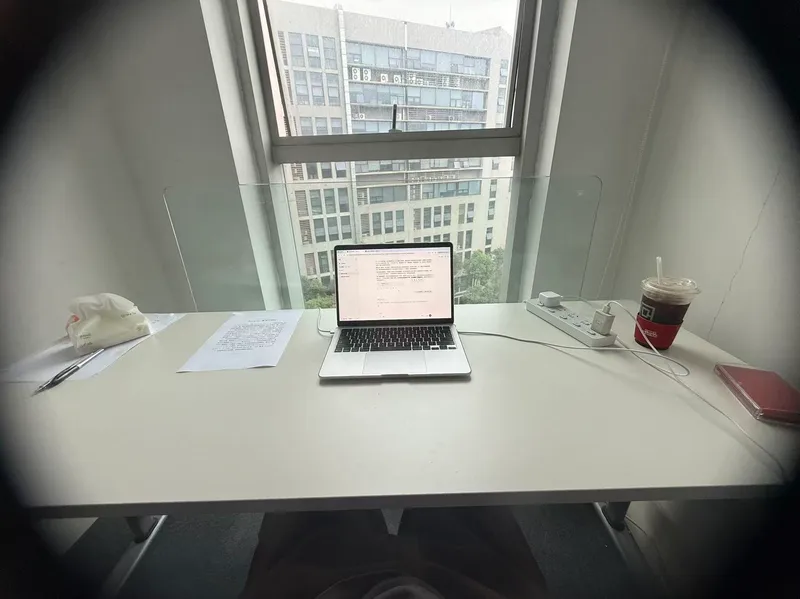
ImageRoom Corner Makeover
Upload a real room corner photo along with its intended use and budget, and this Skill generates two finished effect renders: a full daytime version and a nighttime version. Using the same camera angle, table, and items, the only difference is light and time—the daytime version relies on window light, while the nighttime version depends on lamp lighting. A cost table is included showing what to buy, individual prices, budget savings, or cut priorities if over budget. No more than three new items are added, all with realistic reference prices. It keeps your existing items, leaves walls, floors, and window placements untouched, maintains the camera angle, and matches your original photo aspect ratio. It does not overwhelm you with ten options to choose from, avoid forcing you to run prompts in other tools, and avoids buzzwords. Who is it for, and who is it not for? It is suited for renters, office desk users, people with clear budgets, and those tired of stock photo websites who just want to know what to buy. It is not suited for whole-house renovations, construction drawings, or adding large furniture. It handles a single corner, not an entire house. Three Hard Rules Do not throw away your things. Unless you explicitly state which item can be discarded, every existing item in the image must be identifiable across both renders. Its default stance is rearrangement first, purchasing second. Do not change hard finishes. Wall colors, flooring, window placements, and corner shapes are locked. It provides soft furnishing solutions, not construction plans. Do not change the camera angle. Both renders share lens parameters and height, and horizontal or vertical framing follows your original photo without unauthorized cropping for aesthetics. How to Use 1. Take a picture. Stand in place and capture the corner lines and countertop edges together, making sure the floor and window are visible. Blurry, overexposed, or floor-only photos may be rejected because the corner scope cannot be determined. 2. Speak. Describe the use, budget, and drilling permissions in one sentence. Missing details are fine as the Skill infers them, but clarity helps. More specific supplementary info yields more precise results: a desk and a display stand with the same wall and light need completely different items. Receive your images. Two images and one table, that is all. 3. For deeper content—a ten-direction style matrix, five progressive schemes across five axes, nine image sets (including main image, original comparison, detail close-ups, flat lay list), nine inspection checklists, and three-lock parameter cards—just ask, and it will expand. It is hidden by default to save credits since most decisions do not require draft processes.
 Video
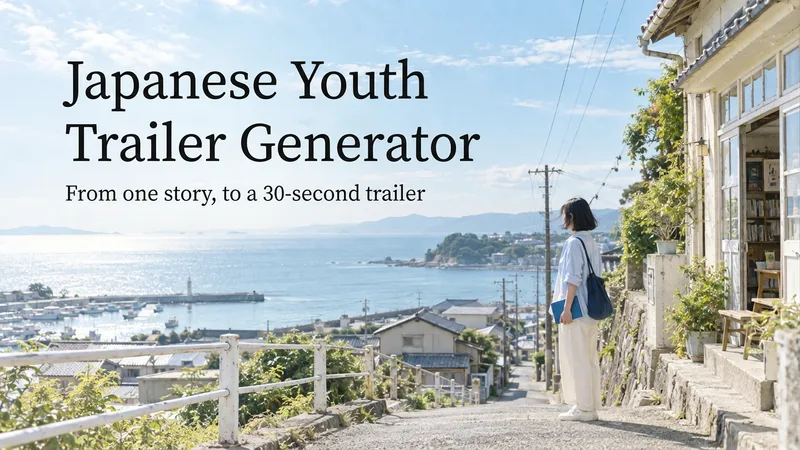
VideoJapanese Youth Trailer Maker
How can you turn a story idea into a suspenseful Japanese youth trailer? This Skill breaks production into a repeatable workflow: define the style, write the script, choose scenes, establish characters, assemble the storyboard, generate video shot by shot, then organize editing and sound. Provide a story or reference image, and it first locks in the composition, lighting, colors, and details that must remain consistent. It then uses a four-panel empty-scene grid to select visuals and creates facial, half-body, and full-body references for each character, giving the people, clothing, props, and environment a consistent basis across shots. Before batch generation, sample images are used to calibrate light direction, skin tones, highlights, and character states. The default is 30 seconds, 16:9, and 8 shots; duration, aspect ratio, number of characters, and mood can all be adjusted. You can also create only the script, reference images, or storyboard instead of completing the entire film at once. Deliverables • Consistent visual rules and a suspenseful script • Scene, character, prop, and storyboard materials • Separate image and video prompts for each shot • A shot-by-shot timing, in/out point, editing, and sound table • Generated files and review records, based on the capabilities of the available tools When the appropriate media tools are available, the Skill continues with actual generation and review. When tools are unavailable, it delivers complete production materials and explains where the process stops. Image, video, and music generation costs are billed separately and depend on the runtime environment. The featured example, “The Day I Returned the Book,” consists of AI-original still images and storyboards; it is not yet a completed video.
Information
- Version
- v3
- Last updated
- Runtime credits
- Usage-based
- Models
- Auto
- Use cases
- Images & design
- What you get
- ImagePromptPlan