Split-Screen Photo Art
Upload one photo—no prompt needed
Split-Screen Photo Art
Upload one photo—no prompt needed
Showcase
Description
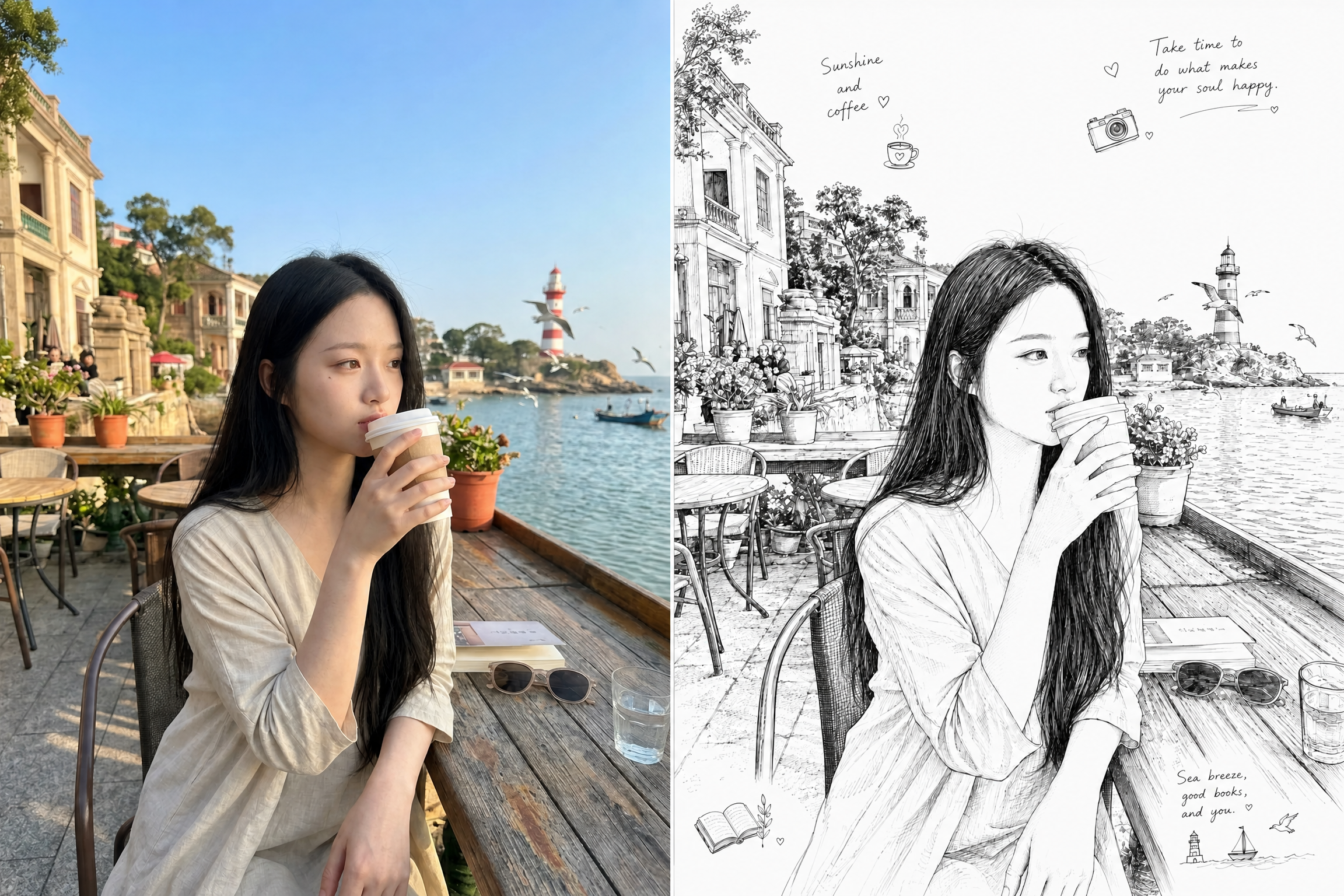
Upload a real photo to automatically create a finished split-screen image: the original photo remains on the left, while the right side shows a detailed black-and-white line illustration of the same subject in the same scene, creating a “reality vs. hand-drawn” contrast.
Recommended by
Dancang
Why we love this skill
Create a highly faithful black-and-white sketch beside the original photo—no prompt writing required. Preserve the subject, pose, and scene with a clean hand-drawn look and subtle doodle accents.
Best for
Best for creating portraits and scenes with a “reality vs. hand-drawn” effect from real photos.
How to use this Skill
Provide your input
Upload a clear photo of a person or subject. You may also include requests for slogans or decorative elements.
Run the Skill
The system automatically turns the subject and scene into a detailed black-and-white line illustration, then combines it with the original photo in a split-screen layout.
Review your result
Get a finished split-screen image: the original photo on the left and the corresponding black-and-white line illustration on the right.
Related Skills
View all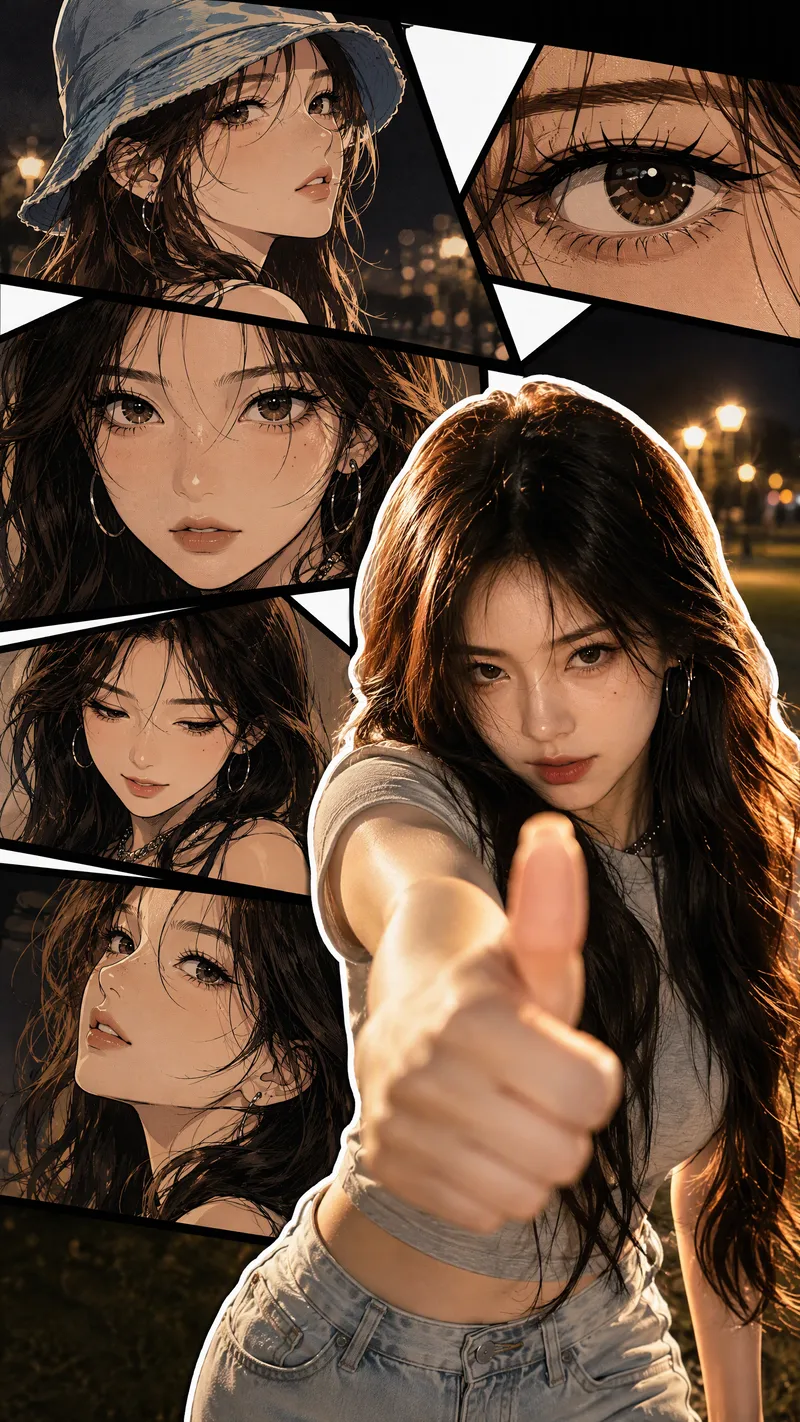 Image
ImageLive-Action Manga Collage
Turn a portrait photo into a 9:16 vertical collage poster that combines photographic realism with comic-style storytelling. The lower right preserves the person’s real appearance and original pose, while multi-panel manga scenes featuring the same face surround it on the left and upper right. Facial features, hairstyle, clothing, accessories, and overall character remain consistent between the real-person image and the illustrations. The poster blends retro Korean manhwa and American comic styles, with color cel shading, sharp black linework, halftone shadows, and finely rendered hair. Bold white outlines, black panel divisions, white geometric paper strips, and layered shadows create a magazine-inspired live-action manga collage. The comic panels can explore emotional angles such as a side profile, a particular gaze, looking down, or a low-angle view. The background extends the mood of the photo into scenes such as nighttime bokeh, a seaside sunset, streetlights on a lawn, or warm indoor lighting. By default, the image is clean and contains no text, speech bubbles, watermarks, or interface elements. It prioritizes preserving the body orientation, gestures, and expression from the photo without replacing the person or changing the pose. You can also specify the background, clothing, accessories, number of panels, or text. If you do not have a photo, it can create a person based on your description of their gender, age, and overall character, using the same vertical collage composition.
 Image
ImageSeamless Photo–Illustration
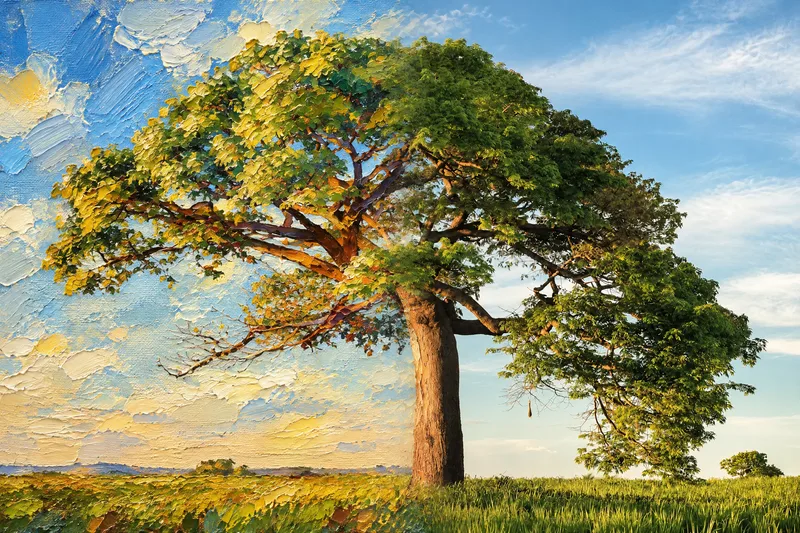
Transform photos of people, animals, pets, cars, buildings, products, food, plants, or scenes into dual-visual artwork featuring the same subject and composition in both realistic and illustrated form. One side preserves photographic texture, natural lighting, and material details, while the illustrated side clearly reflects a hand-drawn, anime, comic, watercolor, oil painting, clay, or vector illustration medium—not a simple filter effect. You can specify whether the visuals are arranged left and right or top and bottom, define where the realistic and illustrated areas appear, choose an illustration style, and set the aspect ratio. The subject’s pose, expression, facial features, structure, clothing, colors, and relationship to the scene remain coherent. People, animals, and objects transition according to their own visual centers, allowing both treatments to occur naturally within the subject rather than mechanically splitting the image. The final image emphasizes seamless integration: photographic texture gradually becomes lines, color blocks, or brushstrokes, while contours and lighting connect naturally. There are no dividing lines, hard edges, collage seams, torn-paper effects, or glowing boundaries. You’ll get a dual-visual image where the difference between the real world and the illustrated world is clear, yet no exact dividing point can be found.
 Image
ImagePhotorealistic Head, Drawn Body
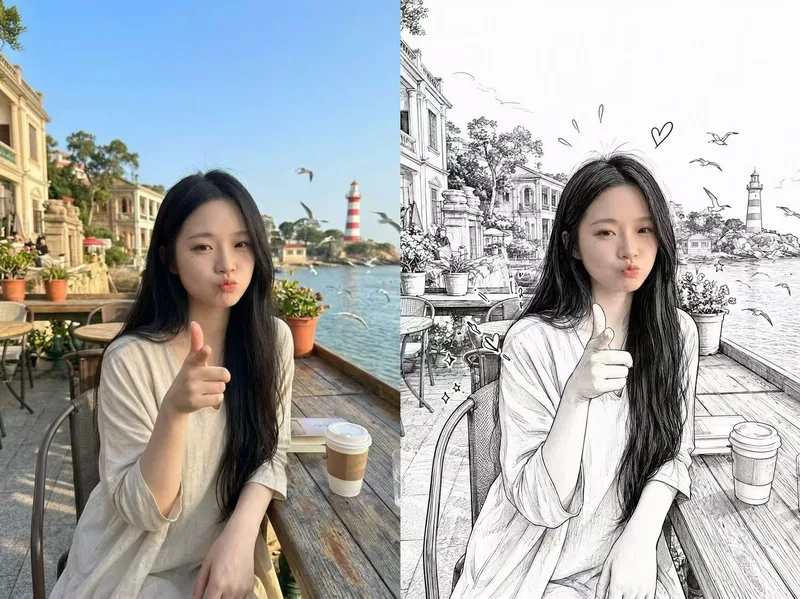
Upload a real photo—no target image needed—to automatically create a finished mixed-style image with a photorealistic head and black-and-white hand-drawn illustration. The head retains photo-realistic texture and recognizable facial features (facial features stay the same, while the expression may be subtly adjusted). Everything else—including the hair and hairstyle, body and build, clothing, pose, background, and decorative elements such as hearts, stars, sparkles, and motion lines—is transformed into a black-and-white hand-drawn illustration. The body keeps realistic proportions, while the original hairstyle and pose are preserved. Ideal for turning a single photo of a person or pet into a creative image featuring a photorealistic head and hand-drawn elements in the same frame.
Information
- Version
- v4
- Last updated
- Runtime credits
- Usage-based
- Models
- Auto
- Use cases
- Images & design
- What you get
- Image
- Visual styles
- Hand-drawnCollage