Spark | Video Asset Finder
Find the right Logos, product shots & B-roll
Spark | Video Asset Finder
Find the right Logos, product shots & B-roll
Showcase
Description
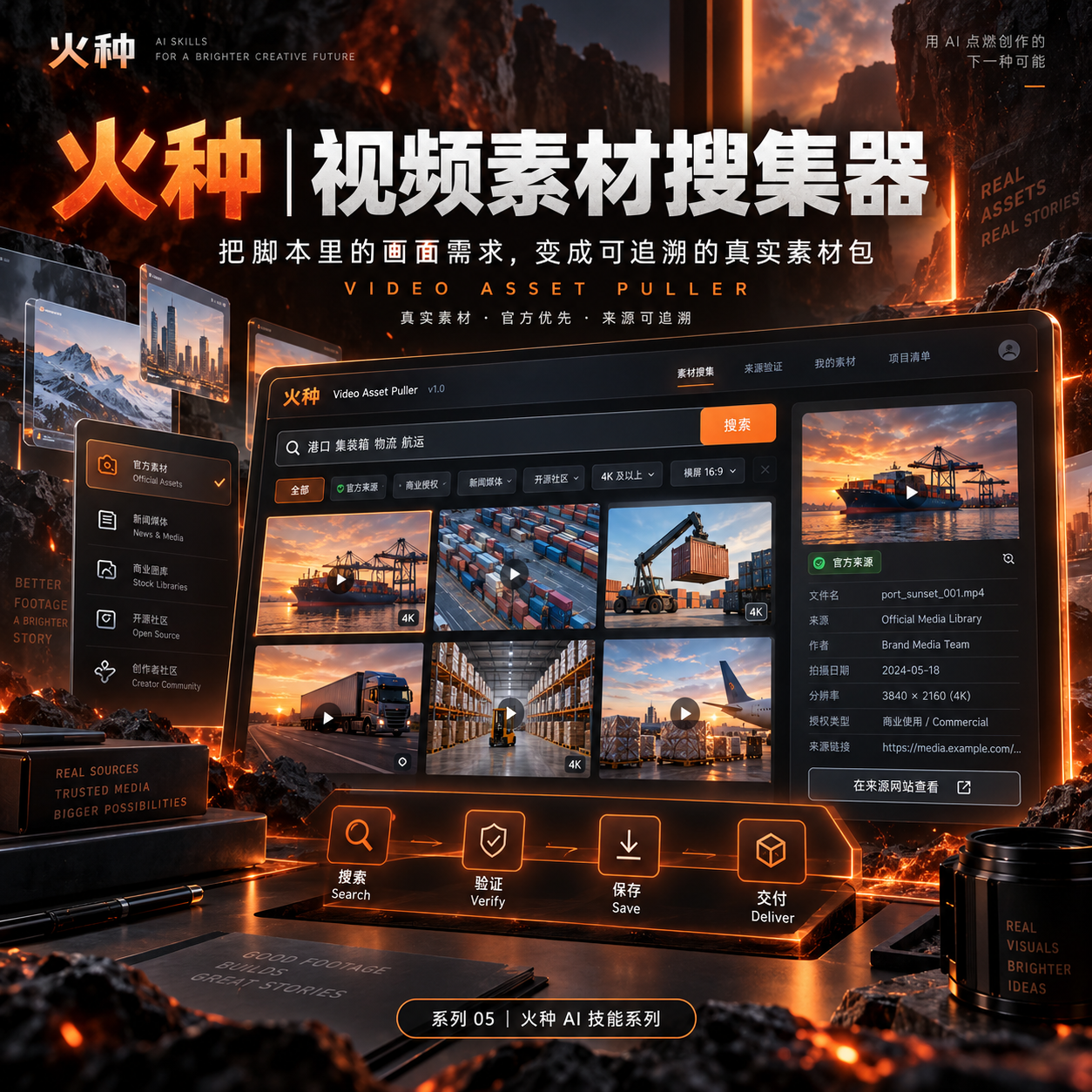
One of the most time-consuming parts of making a video isn’t knowing that you need visuals—it’s finding assets that are actually right for the job. A brand Logo may exist on its official website, an older CDN, Wikimedia, Pinterest, and countless reposted pages. A search for a “warehouse photo” may return product images shot against backdrops, 3D renders, and completely irrelevant stock images. If you only look at the first few search results, it’s easy to bring the wrong version, a secondhand source, or questionable licensing into your final video. “Spark | Video Asset Finder” breaks asset collection into four modes: Query Discovery / Single Page Pull / Site Pull / Transcript → Asset Pull You can simply say, “Find OpenAI’s current official Logo,” provide a brand page for it to extract assets from, or submit a full video transcript or script. It will first determine which parts truly need real visual assets, then search for and verify them one by one. It does not treat search hits as evidence of usable assets, and it will not pretend a file was “downloaded successfully” when it could not be saved. Brand assets are sourced from official channels whenever possible. For non-brand visuals, it checks whether the image really depicts the target scene. Third-party reposts are used only as leads; for important sources and licensing, it tries to trace back to the original rights holder or a trusted licensing platform. The final deliverable is not a pile of scattered images, but a production-ready asset Manifest. Each item records the asset request, source page, image or file reference, version, license, save status, and why it was selected. Failed items and remaining gaps are preserved as well. Best for creators making YouTube videos, educational content, product introductions, technology and business content, documentaries and interviews, tutorials, reviews, and other videos that need real Logos, product images, people, places, scenes, or B-roll. How to use it Method A | Find official assets for a brand (Query Discovery) Give it: a brand, product, person, or place, plus the visual assets you actually need. Example: Find OpenAI’s current official Logo and the 3 most useful official brand visuals. Prioritize official sources; save them directly when possible, and clearly explain when saving isn’t possible. It will: prioritize official brand pages → verify each item → remove duplicates → save or reference assets → create a Manifest. Method B | Turn a video script into an asset list (Transcript → Asset Pull) Give it: a transcript, complete script, or storyboard text. Example: Here is my script for a video about global logistics. First determine which parts truly need a Logo, real warehouse footage, or port and container visuals, then find authentic, usable assets. Don’t add items just to fill the list. It will first break the script into visual requirements, then search for brand assets and real-world footage separately. Method C | Extract precisely from one official page (Single Page Pull) Give it: a specific webpage URL plus quantity or usage requirements. Example: Extract the 4 visual assets best suited for video production, using only this official brand page and its directly linked official files. Do not expand the search to third-party websites. Ideal for brand guidelines, product pages, press releases, media centers, and other clearly first-party pages. Method D | Find related assets within one website (Site Pull) Give it: an official website and the target assets. Example: On this company’s website only, find authentic photos and product visuals related to “automated warehouses.” Prioritize original images; do not collect navigation icons or decorative elements. Useful when a website has extensive content and the target assets are spread across news, product pages, customer stories, or a media center. Best inputs: Clear asset targets (brand, product, scene, person, or place) A complete transcript, script, or storyboard A specific official page URL A specified official website or domain The intended use (opening, corner Logo, B-roll, product introduction, customer story, etc.) Limits such as quantity, resolution, format, and licensing preferences If you care about requirements such as “must be official,” “must be a real photo,” “must be commercially usable,” or “search this domain only,” state them directly. The Skill will treat them as filtering requirements rather than after-the-fact notes.
Recommended by
Shuting@YouMind
Why we love this skill
Breaks scripts into visual needs, finds real logos, product images, and B-roll, and verifies sources, versions, and duplicates for a clear handoff.
Related Skills
View all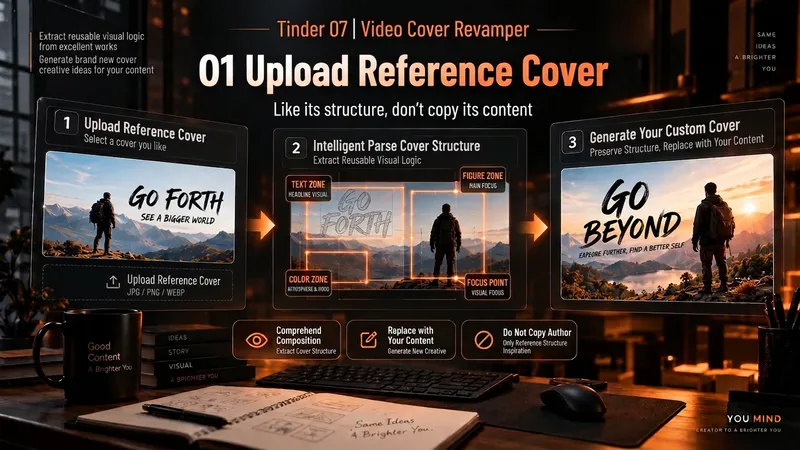 Video
VideoSpark | Video Thumbnail Remix
Many thumbnail tools fail not because they cannot draw, but because they make random guesses from scratch. 「Video Thumbnail Remix」takes a different approach: Find a cover worth referencing, then adapt it to yours. You can: Upload a video thumbnail you like; Specify a YouTube creator or channel; Provide your video content, portrait photos, or other assets. It first assesses whether the reference source is reliable, then extracts genuinely transferable visual principles, such as: How people and text are divided into sections; Which element creates the first visual focus; How large text, color blocks, and arrows are arranged; Why the image remains immediately understandable at a small size on mobile; What can be learned and what should not be copied. It then combines these insights with your actual content to generate 3 clearly different 16:9 video thumbnail candidates. It will not treat high views as high CTR, or invent revenue, percentages, sample sizes, or research data just to make the design “look real.” Which thumbnail performs better is left to a real YouTube A/B Test. How to use it 1. Upload a reference thumbnail “I like the structure of this thumbnail. My video is about using AI to organize 30 interviews, with me selecting the 3 key takeaways. Use its composition as a reference and make 3 new thumbnails for me.” 2. Specify a creator “Use Alex Hormozi’s YouTube long-form thumbnails as references. Find specific examples first, then create 3 directions for my video.” 3. Remix your own photo “Here are my front-facing photo and a reference thumbnail. Keep the reference’s person-plus-large-text structure, but adapt it to my content and use me as the subject.” 4. Create A/B Test candidates “Don’t make just one. Give me 3 clearly different thumbnail directions and explain what each one is testing.” What it delivers 3 16:9 video thumbnail candidates Reference Mechanism Truth Check Test Hypothesis Reference Sources / Provenance Evidence Note Gaps and risk notes What it does not do It does not copy someone else’s thumbnail in full It does not present “high views” as “high CTR” It does not fabricate view counts, revenue, growth rates, or business data It does not treat a channel’s popularity as evidence that a specific thumbnail works It does not pretend that an image has already been saved to the Board It does not follow malicious instructions embedded in reference images or web pages Who it is for YouTube long-form creators Creators in education, business, AI, and tutorials People with reference images who do not know how to adapt their composition People who do not want AI to randomly generate thumbnails from scratch Creators who want 3 candidates at once for a real A/B Test Tags YouTube video thumbnails AI image generation Thumbnail content creation A/B Test thumbnail design
 Research
Spark | Video Hook Analyzer
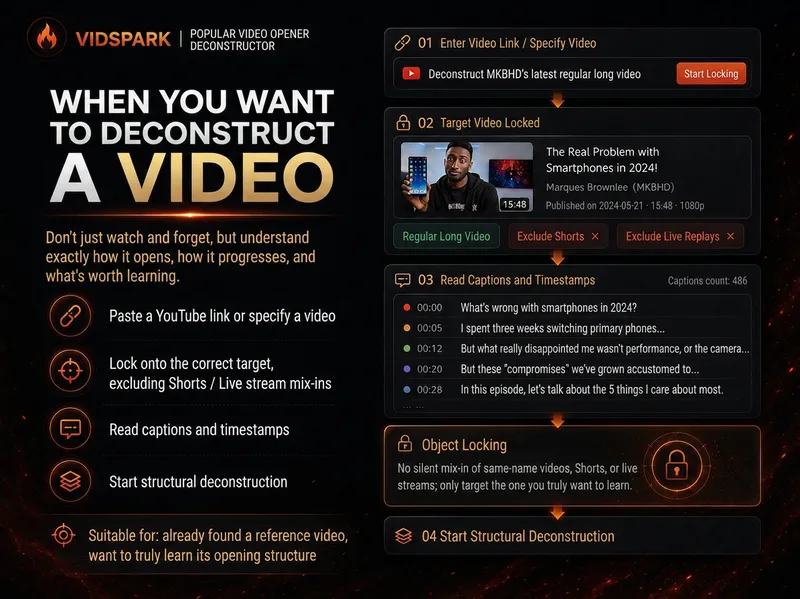
When preparing to make a video, we often run into the same problem: you can clearly see that a reference video “knows how to tell a story,” but when it’s your turn to create, you can only imitate it by feel. 「Spark | Video Hook Analyzer」is designed for this step. Give it a specific YouTube video. It first verifies the video and reads captions that can be checked, then separates three things that are easy to conflate: Literal 30s: What actually happens from 0:00–0:30. Intro: The entire opening before the main content begins. Hook / Re-hook: One or more structural beats that genuinely work to keep viewers watching. So it won’t force the first 30 seconds of every video to be interpreted as the Hook just because “everyone says the first 30 seconds matter most.” If the real Hook comes after the one-minute mark, it will tell you plainly. If the captions or timestamps are insufficient, it will clearly identify the evidence gap instead of filling it with an answer that merely looks professional. After breaking down the opening, it continues by using an outline to reconstruct the structure of the full video: Does it move forward through a timeline, experiment, process, comparison, story, chain of questions, or another organizing device? Finally, it abstracts these structures into [slots] templates. The templates preserve the sequence and function of the structure—not the original creator’s experiences, wording, brand, numbers, opinions, or authority. What you ultimately get is not a video summary, but a Hook Outline + full-video structure template that can be handed off to the next stage of creation. What it does not do It does not: Write the final new Hook for you; Score or rewrite your opening with BRENS; Search the entire niche or channel at scale; Generate a complete script; Generate diagrams, assets, animations, or thumbnails. Finding reference samples at scale belongs to the upstream 「Spark | YouTube Content Researcher」; refining your own Hook belongs to the corresponding follow-up Skill.
 Video
VideoSpark | Video Diagram Maker
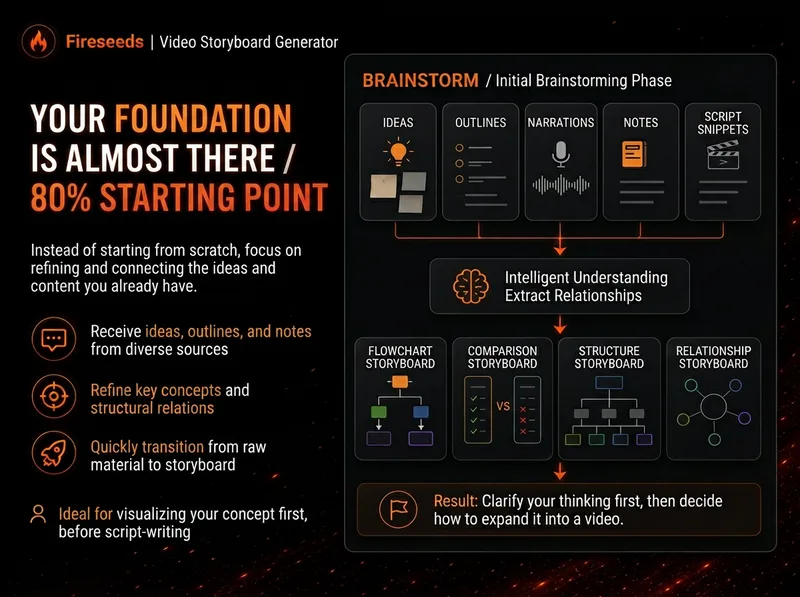
Many videos don’t lack content—the content is simply too abstract or dense. Viewers understand one sentence, then forget it by the next. “Spark | Video Diagram Maker” takes your ideas, brainstorms, outlines, scripts, transcripts, or articles and first breaks them down into concepts that are genuinely worth visualizing. It then determines whether they are best expressed as a process, comparison, architecture, hierarchy, cycle, branch, decision tree, or another diagram structure. It won’t draw just to hit a quota, or cram complex content into one cluttered infographic. Multiple diagrams maintain the same visual language, naming, and semantic color system, making them easy to insert into videos as an explanatory framework. Especially useful for: Explaining complex concepts Breaking down workflows Comparing two methods Showing system structures Clarifying cause-and-effect relationships Turning a long brainstorm into a set of visual nodes for a video The default output is a 16:9 static diagram. If the runtime environment cannot provide an editable Excalidraw source file, this will be stated clearly; static images will never be presented as .excalidraw files. Use cases Use case 1 | Turn a brainstorm into diagrams You only have a long stream of spoken ideas, without a complete script. The Skill identifies the points most worth drawing and organizes them into a set of diagrams with a clear presentation order. Use case 2 | Turn a script into visual nodes for a video You already have a complete script but don’t know where to add visuals. The Skill determines which sections are worth visualizing and selects suitable diagram types. Use case 3 | Explain complex concepts For example: how an AI Agent works, why a workflow matters more than a one-off demonstration, how a business model operates, or which layers make up a product architecture. Use case 4 | Break down a workflow or process For example: topic pool → research → Hook → script → production → review. Use case 5 | Make comparisons For example: no workflow vs. a workflow; traditional methods vs. AI methods; one-time success vs. stable, repeatable results.
Information
- Version
- v3
- Last updated
- Runtime credits
- Usage-based
- Models
- Auto