Seedance Video Pipeline
Instructions
## Step 1: Collect User Input
Collect video creation needs from users. Use the askUserQuestion tool to guide users to provide key information:
### Information that must be collected:
1. **Creative Theme/Script:** What does the user want to film? Story synopsis or complete script.
2. **Reference Image Resources:** Are there reference images for characters, scenes, and costumes? (Ask users to provide image URLs.)
3. **Video Specification Preferences:**
- Duration (4-15 seconds/scene)
- Aspect Ratio (16:9 Landscape / 9:16 Portrait / 1:1 Square)
- Is audio required?
4. **Number of Acts:** Is it a single-act or multi-act short play? If multi-act, approximately how many acts?
5. **Special Requirements:** Dialogue content, style preferences, prohibited items, etc.
Use askUserQuestion to let users select key parameters (such as aspect ratio, duration range), and let users freely input text descriptions.
If the user has already provided enough information in the initial query, skip the existing parts and only fill in the missing items.
## Step 2: Director's Creative Breakdown
Based on user input, the Director role is broken down into engineering components, and a complete `director_plan` is output.
### Disassembly contents:
**1. Character Sheet**
- For each character: Name/codename, gender, age range, physical characteristics (hairstyle, skin tone, body type), clothing description, and personality keywords.
- If a reference image is available, please include the corresponding reference image URL.
**2. Scene Sheet**
- For each scene: name, environment description (indoor/outdoor, time, weather, lighting), key props, and spatial layout.
- If a reference image is available, please include the corresponding reference image URL.
**3. Shot Plan**
- Divided into acts, each act contains:
- Act number and duration
- Participating roles and positions
- Core Actions/Events
- Camera movement techniques (push/pull/pan/shift/fixed/follow)
- Dialogue content (if any, locked word by word)
- Mood/Rhythm
**4. Asset Manifest**
- List all reference images and their uses (character reference/scene reference/clothing reference)
- Specify the order in which each figure will be referenced in subsequent Prompts.
### Output:
Write the complete director plan into a YouMind Page document (using the write tool), with the title format: `[Project Name] Director Plan`.
After writing the plan, inform the user that the Director Plan is complete, briefly show the key decision points, and ask if any adjustments are needed.
## Step 3: Seedance Prompt Project
Based on director_plan, a structured Prompt conforming to Seedance 2.0 best practices is generated for each scene.
### Each Prompt must contain the following structure (strictly adhered to):
1. **Movie length, aspect ratio, resolution, and audio settings**
- Clearly specify: duration, ratio, and whether audio should be generated.
2. **Dialogue Lock**
- If there is dialogue, write it out word for word, without changing punctuation, modifiers, or word order.
- Format: `[Character Name]: "Dialogue Content"`
3. **Character Locking**
- The number of visible characters, each character's identity, clothing, and position in the scene.
- Format: `Character A (Clothing Description) is located on the left/center/right side of the screen`
4. **Reference Diagram Explanation**
- Explain the purpose of each reference image in the actual order of the content[] array.
Instead of using placeholders like @Image1, directly describe it as: "The first reference image is a full-body image of character A, and the second image is a scene environment reference."
5. **Scene Anchor Points and Item Status**
- Environment description, location and status of key items
6. **Timeline per second**
- Segments are spaced 1-3 seconds apart, each segment containing:
- Composition Description
- Camera movement/switching methods
- Character Actions
- Spatial continuity description
- Dialogue/Sound Effects (if any)
7. **Negative Constraints**
- Default settings include: no subtitles, no dialogue bubbles, no watermark, no extra characters, and no character drift (character appearance cannot change midway).
- Add other user-specified prohibited items
### Output:
Append the prompts for all scenes to the same Page document (using the edit tool to append to the Director Plan document), separating each scene with ## scene number.
At the same time, prepare the calling parameters for videoGenerate (model, duration, aspect_ratio, quality, mode, reference graph, etc.) and record them in the documentation.
## Step 4: Reviewer reviews access control
A rigorous review process is performed before calling videoGenerate. The following checklist is checked item by item:
### Review Checklist (7 items):
1. **Material Completeness**: Do all the reference images (character references/scene references/clothing references) listed in the Director Plan have valid URLs?
- If the user does not provide a reference image, check whether the prompt provides sufficient compensation with a plain text description.
2. **Prompt Structural Integrity**: Does each Prompt contain all 7 necessary structural elements (length setting, dialogue lock, character lock, reference illustration, scene anchor, timeline, and constraints)?
3. **Reference Image Order Consistency:** Does the order of reference images described in the Prompt match the actual order of the reference_images array passed to videoGenerate?
4. **Dialogue Lock Verification:** If there is dialogue, does the dialogue content in the Prompt match the user's original input word for word (punctuation, modal particles, and order)?
5. **Character Consistency**: Are the number of visible characters, their positions, item status, and prohibited items clearly stated in the Prompt?
6. **Parameter Matching**: Are the calling parameters (duration, aspect_ratio, quality, mode) of videoGenerate consistent with those declared in the Prompt?
7. **Completeness of Restrictions**: Does it include the default prohibited items (no subtitles, no speech bubbles, no watermark, no extra characters, no identity drift)?
### Review Results:
- All passes → Output `PASS_TO_SUBMIT`, proceed to generation stage
If any item fails, output `BLOCKED`, listing the specific problem.
If BLOCKED:
- Use askUserQuestion to inform users which items failed.
- Provide repair suggestions
- Ask the user if they want to: (a) provide missing footage (b) let AI automatically complete/correct the footage (c) ignore this check and force continue
- The Prompt was revised after user confirmation and is now under review.
Add the review report to the Page document.
## Step 5: Video Generation and Recording
After the review is approved, videoGenerate is called one by one in sequence to generate the video.
### Generation parameters:
- **model**: `doubao-seedance-2-0-260128` (High-quality version)
- **quality**: `high`
- **prompt**: Use the structured Prompt generated in Step 3
- **aspect_ratio**: Based on user selection
- **duration**: The planned duration per scene
- **audio_enabled**: Selected by user
- **mode**: Use `reference` if there are reference images, and set reference_images.
- **title**: `[Project Name] Act N`
### Execution Flow:
1. If it's a multi-screen application, use askUserQuestion to ask the user:
- Generate all screens at once?
- Or should it be generated scene by scene, with each scene confirmed before moving on to the next?
2. Scene-by-scene generation:
- Call videoGenerate
- After successful generation, the result information (scene number, generation status) will be recorded in the Page document.
- In scene-by-scene mode, after displaying the result, ask the user if they are satisfied. If not, the prompt can be adjusted to regenerate the current scene.
3. After all generation is complete:
- Update the final state summary in the Page document
- Inform the user that all videos have been generated and they can download them themselves.
- List an overview of the generated results for each scene.
### Final structure of the Page document:
```
# [Project Name] Video Production Log
## Director Plan
(Character list, scene list, shot planning, asset list)
## Prompt Record
### Act 1 Prompt
...
### Act 2 Prompt
...
## Reviewer's Report
(Review Results)
## Result Generation
### Act 1
- Status: ✅ Generated
### Act 2
- Status: ✅ Generated
## Production Summary
- Total number of acts: N
- Total completion time: ...
```
Description
Why we love this skill
This skill turns video production into a structured process, from requirement collection to video generation, with each step meticulously broken down and rigorously reviewed, ensuring high-quality, consistent video output.
A complete video production pipeline from script or concept to a finished Seedance 2.0 video. It includes four stages: Director creative breakdown, structured prompt engineering, Reviewer quality gates, and video generation. All outputs are recorded in Page documents to create a traceable workflow.
Related Skills
View all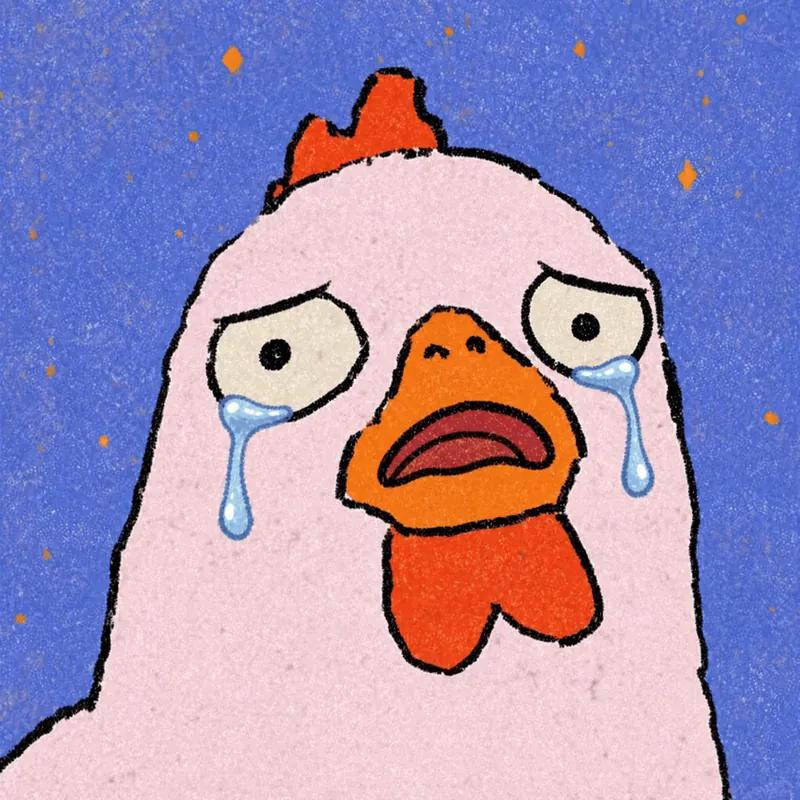
Photo to GIF Emoji
Turn an image or reference GIF into a natural, seamless GIF emoji or sticker. The number of key images depends on the complexity of the action. After you confirm the keyframe visuals, the skill uses the YouMind desktop app to compile the animated GIF. ⚠️ Requires the YouMind desktop app.
 Image
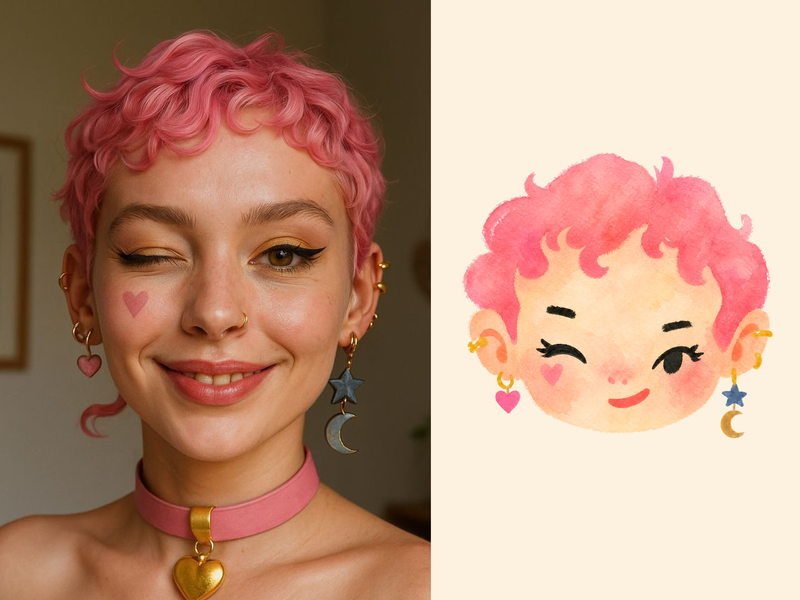
ImageNaive Doodle Avatar
Turn a portrait, appearance description, or creative character idea into a distinctive naive doodle fashion-chibi avatar with a childlike yet cool editorial feel. The style emphasizes bold graphic hair shapes, rough marker or dry-brush edges, restrained watercolor-like color, and a clean white or warm-white background. Real photos guide recognizable cues such as hairstyle silhouette, face shape, expression, and attached accessories while remaining clearly transformed into an illustrated avatar rather than a realistic likeness. You can also start with a set of fresh fictional avatars when you want random inspiration instead of a photo-based transformation. The result stays flat, expressive, and fashion-forward, avoiding photographic skin, 3D rendering, heavy shading, detailed anatomy, distracting backgrounds, text, and watermarks.
 Image
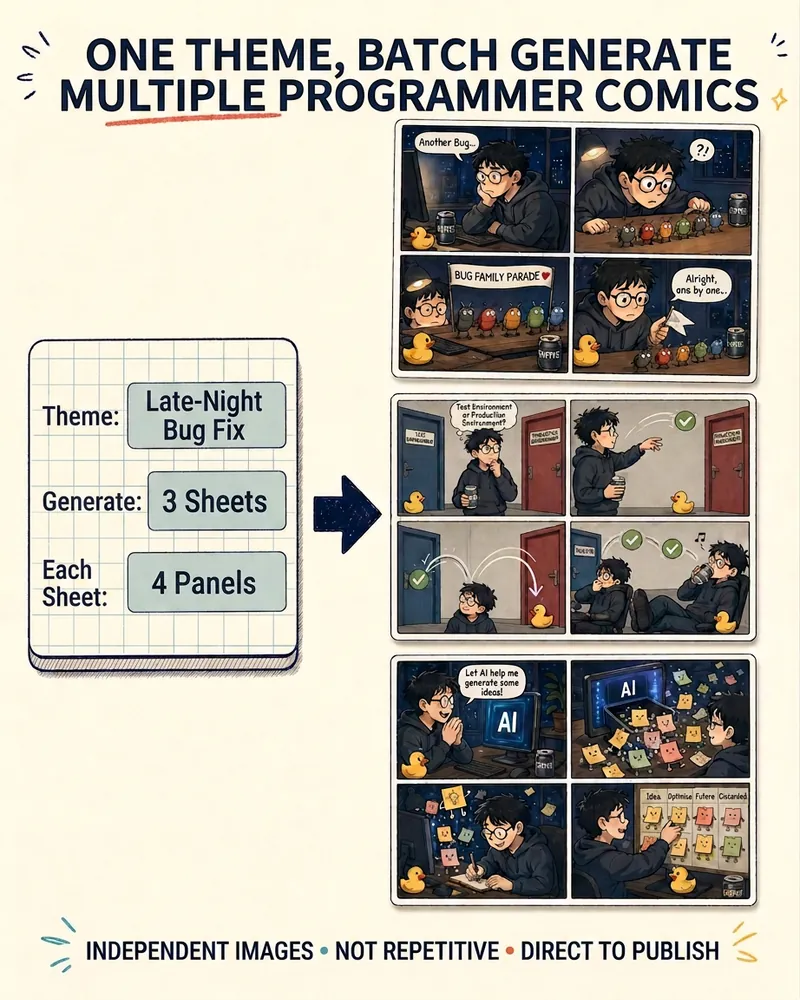
ImageProgrammer Comic Generator
Turn a technical topic into multiple shareable programmer comics. Just tell me the “topic, number of comics, and panels per comic” to get several standalone stories: different errors, different absurd metaphors, and different twists—not collages or repeated content with only the title changed. Supports 3-, 4-, 6-, and 8-panel comics; by default, the same main character appears across the series, but you can also switch characters for each comic. No need to upload code or internal screenshots—just leave a single de-identified workplace moment.
Seedance Video Pipeline
Instructions
## Step 1: Collect User Input
Collect video creation needs from users. Use the askUserQuestion tool to guide users to provide key information:
### Information that must be collected:
1. **Creative Theme/Script:** What does the user want to film? Story synopsis or complete script.
2. **Reference Image Resources:** Are there reference images for characters, scenes, and costumes? (Ask users to provide image URLs.)
3. **Video Specification Preferences:**
- Duration (4-15 seconds/scene)
- Aspect Ratio (16:9 Landscape / 9:16 Portrait / 1:1 Square)
- Is audio required?
4. **Number of Acts:** Is it a single-act or multi-act short play? If multi-act, approximately how many acts?
5. **Special Requirements:** Dialogue content, style preferences, prohibited items, etc.
Use askUserQuestion to let users select key parameters (such as aspect ratio, duration range), and let users freely input text descriptions.
If the user has already provided enough information in the initial query, skip the existing parts and only fill in the missing items.
## Step 2: Director's Creative Breakdown
Based on user input, the Director role is broken down into engineering components, and a complete `director_plan` is output.
### Disassembly contents:
**1. Character Sheet**
- For each character: Name/codename, gender, age range, physical characteristics (hairstyle, skin tone, body type), clothing description, and personality keywords.
- If a reference image is available, please include the corresponding reference image URL.
**2. Scene Sheet**
- For each scene: name, environment description (indoor/outdoor, time, weather, lighting), key props, and spatial layout.
- If a reference image is available, please include the corresponding reference image URL.
**3. Shot Plan**
- Divided into acts, each act contains:
- Act number and duration
- Participating roles and positions
- Core Actions/Events
- Camera movement techniques (push/pull/pan/shift/fixed/follow)
- Dialogue content (if any, locked word by word)
- Mood/Rhythm
**4. Asset Manifest**
- List all reference images and their uses (character reference/scene reference/clothing reference)
- Specify the order in which each figure will be referenced in subsequent Prompts.
### Output:
Write the complete director plan into a YouMind Page document (using the write tool), with the title format: `[Project Name] Director Plan`.
After writing the plan, inform the user that the Director Plan is complete, briefly show the key decision points, and ask if any adjustments are needed.
## Step 3: Seedance Prompt Project
Based on director_plan, a structured Prompt conforming to Seedance 2.0 best practices is generated for each scene.
### Each Prompt must contain the following structure (strictly adhered to):
1. **Movie length, aspect ratio, resolution, and audio settings**
- Clearly specify: duration, ratio, and whether audio should be generated.
2. **Dialogue Lock**
- If there is dialogue, write it out word for word, without changing punctuation, modifiers, or word order.
- Format: `[Character Name]: "Dialogue Content"`
3. **Character Locking**
- The number of visible characters, each character's identity, clothing, and position in the scene.
- Format: `Character A (Clothing Description) is located on the left/center/right side of the screen`
4. **Reference Diagram Explanation**
- Explain the purpose of each reference image in the actual order of the content[] array.
Instead of using placeholders like @Image1, directly describe it as: "The first reference image is a full-body image of character A, and the second image is a scene environment reference."
5. **Scene Anchor Points and Item Status**
- Environment description, location and status of key items
6. **Timeline per second**
- Segments are spaced 1-3 seconds apart, each segment containing:
- Composition Description
- Camera movement/switching methods
- Character Actions
- Spatial continuity description
- Dialogue/Sound Effects (if any)
7. **Negative Constraints**
- Default settings include: no subtitles, no dialogue bubbles, no watermark, no extra characters, and no character drift (character appearance cannot change midway).
- Add other user-specified prohibited items
### Output:
Append the prompts for all scenes to the same Page document (using the edit tool to append to the Director Plan document), separating each scene with ## scene number.
At the same time, prepare the calling parameters for videoGenerate (model, duration, aspect_ratio, quality, mode, reference graph, etc.) and record them in the documentation.
## Step 4: Reviewer reviews access control
A rigorous review process is performed before calling videoGenerate. The following checklist is checked item by item:
### Review Checklist (7 items):
1. **Material Completeness**: Do all the reference images (character references/scene references/clothing references) listed in the Director Plan have valid URLs?
- If the user does not provide a reference image, check whether the prompt provides sufficient compensation with a plain text description.
2. **Prompt Structural Integrity**: Does each Prompt contain all 7 necessary structural elements (length setting, dialogue lock, character lock, reference illustration, scene anchor, timeline, and constraints)?
3. **Reference Image Order Consistency:** Does the order of reference images described in the Prompt match the actual order of the reference_images array passed to videoGenerate?
4. **Dialogue Lock Verification:** If there is dialogue, does the dialogue content in the Prompt match the user's original input word for word (punctuation, modal particles, and order)?
5. **Character Consistency**: Are the number of visible characters, their positions, item status, and prohibited items clearly stated in the Prompt?
6. **Parameter Matching**: Are the calling parameters (duration, aspect_ratio, quality, mode) of videoGenerate consistent with those declared in the Prompt?
7. **Completeness of Restrictions**: Does it include the default prohibited items (no subtitles, no speech bubbles, no watermark, no extra characters, no identity drift)?
### Review Results:
- All passes → Output `PASS_TO_SUBMIT`, proceed to generation stage
If any item fails, output `BLOCKED`, listing the specific problem.
If BLOCKED:
- Use askUserQuestion to inform users which items failed.
- Provide repair suggestions
- Ask the user if they want to: (a) provide missing footage (b) let AI automatically complete/correct the footage (c) ignore this check and force continue
- The Prompt was revised after user confirmation and is now under review.
Add the review report to the Page document.
## Step 5: Video Generation and Recording
After the review is approved, videoGenerate is called one by one in sequence to generate the video.
### Generation parameters:
- **model**: `doubao-seedance-2-0-260128` (High-quality version)
- **quality**: `high`
- **prompt**: Use the structured Prompt generated in Step 3
- **aspect_ratio**: Based on user selection
- **duration**: The planned duration per scene
- **audio_enabled**: Selected by user
- **mode**: Use `reference` if there are reference images, and set reference_images.
- **title**: `[Project Name] Act N`
### Execution Flow:
1. If it's a multi-screen application, use askUserQuestion to ask the user:
- Generate all screens at once?
- Or should it be generated scene by scene, with each scene confirmed before moving on to the next?
2. Scene-by-scene generation:
- Call videoGenerate
- After successful generation, the result information (scene number, generation status) will be recorded in the Page document.
- In scene-by-scene mode, after displaying the result, ask the user if they are satisfied. If not, the prompt can be adjusted to regenerate the current scene.
3. After all generation is complete:
- Update the final state summary in the Page document
- Inform the user that all videos have been generated and they can download them themselves.
- List an overview of the generated results for each scene.
### Final structure of the Page document:
```
# [Project Name] Video Production Log
## Director Plan
(Character list, scene list, shot planning, asset list)
## Prompt Record
### Act 1 Prompt
...
### Act 2 Prompt
...
## Reviewer's Report
(Review Results)
## Result Generation
### Act 1
- Status: ✅ Generated
### Act 2
- Status: ✅ Generated
## Production Summary
- Total number of acts: N
- Total completion time: ...
```
Description
Why we love this skill
This skill turns video production into a structured process, from requirement collection to video generation, with each step meticulously broken down and rigorously reviewed, ensuring high-quality, consistent video output.
A complete video production pipeline from script or concept to a finished Seedance 2.0 video. It includes four stages: Director creative breakdown, structured prompt engineering, Reviewer quality gates, and video generation. All outputs are recorded in Page documents to create a traceable workflow.
Related Skills
View allPhoto to GIF Emoji
Turn an image or reference GIF into a natural, seamless GIF emoji or sticker. The number of key images depends on the complexity of the action. After you confirm the keyframe visuals, the skill uses the YouMind desktop app to compile the animated GIF. ⚠️ Requires the YouMind desktop app.
ImageNaive Doodle Avatar
Turn a portrait, appearance description, or creative character idea into a distinctive naive doodle fashion-chibi avatar with a childlike yet cool editorial feel. The style emphasizes bold graphic hair shapes, rough marker or dry-brush edges, restrained watercolor-like color, and a clean white or warm-white background. Real photos guide recognizable cues such as hairstyle silhouette, face shape, expression, and attached accessories while remaining clearly transformed into an illustrated avatar rather than a realistic likeness. You can also start with a set of fresh fictional avatars when you want random inspiration instead of a photo-based transformation. The result stays flat, expressive, and fashion-forward, avoiding photographic skin, 3D rendering, heavy shading, detailed anatomy, distracting backgrounds, text, and watermarks.
ImageProgrammer Comic Generator
Turn a technical topic into multiple shareable programmer comics. Just tell me the “topic, number of comics, and panels per comic” to get several standalone stories: different errors, different absurd metaphors, and different twists—not collages or repeated content with only the title changed. Supports 3-, 4-, 6-, and 8-panel comics; by default, the same main character appears across the series, but you can also switch characters for each comic. No need to upload code or internal screenshots—just leave a single de-identified workplace moment.
Find your next favorite skill
Explore more curated AI skills for research, creation, and everyday work.