
藏趣挑战·素材源(勿删)
藏趣挑战技能的包内素材与视频源,勿删
藏趣挑战·素材源(勿删)
藏趣挑战技能的包内素材与视频源,勿删
Showcase
Description
Design fixed-count hidden-object challenges from an uploaded background or a scene brief, with optional custom transparent characters, scene-specific occlusion and matching answers. Generate assets only with available host tools; render with Python/FFmpeg when available.
Best for
Content creators who want to make fixed-count hidden-object challenges from custom scenes and characters.
How to use this Skill
Provide your input
Provide a background image or describe a scene, and optionally add a transparent character or character reference.
Run the Skill
The skill arranges a fixed number of recognizable targets in natural hiding spots, checks the vertical composition, and prepares matching answer reveals. Video rendering is used when available.
Review your result
Receive a hidden-object challenge preview with corresponding answers, plus arranged image assets and rendered challenge videos when supported.
Related Skills
View all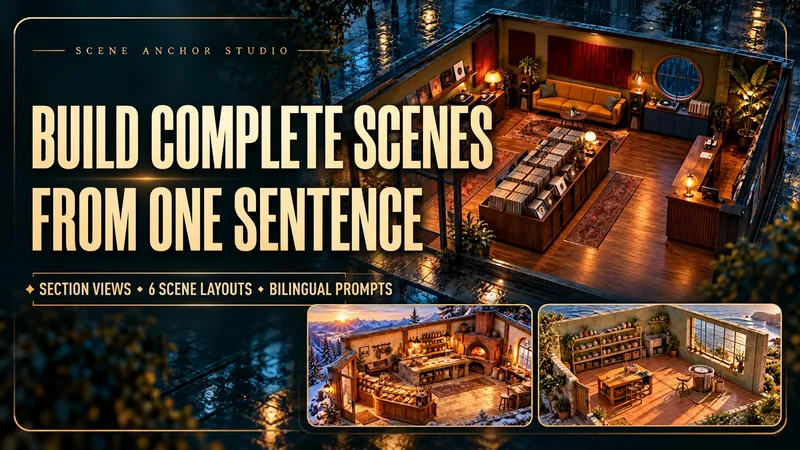 Video
Scene Anchor Studio
Turn a scene description, reference image, or sketch into a spatial plan and six camera-shot prompts built around one shared layout. Place doors, windows, furniture, and key props in a common coordinate system. Define materials, atmosphere, light direction, and the relationships that later shots should preserve. When you request image generation, create a text-free 45° cutaway scene reference to inspect and refine the space. Your kit includes a scene brief, fixed spatial anchors, a cutaway reference when requested, six feasible shot prompts, and targeted drift-repair instructions. Each shot specifies camera position, viewing direction, framing, visible elements, occlusion, and continuity constraints. The shot prompts form a production plan for further image or video creation. Explore original locations such as a rain-night record shop, a mountain bakery, or a seaside pottery atelier. Use the kit for AI short-film planning, calming visual stories, product narratives, and multiple views of a recurring location. Bring an existing scene to identify shifted furniture, flipped windows, or changed lighting and receive correction prompts. Output follows your input language by default. Chinese and English output is available on request.
 Video
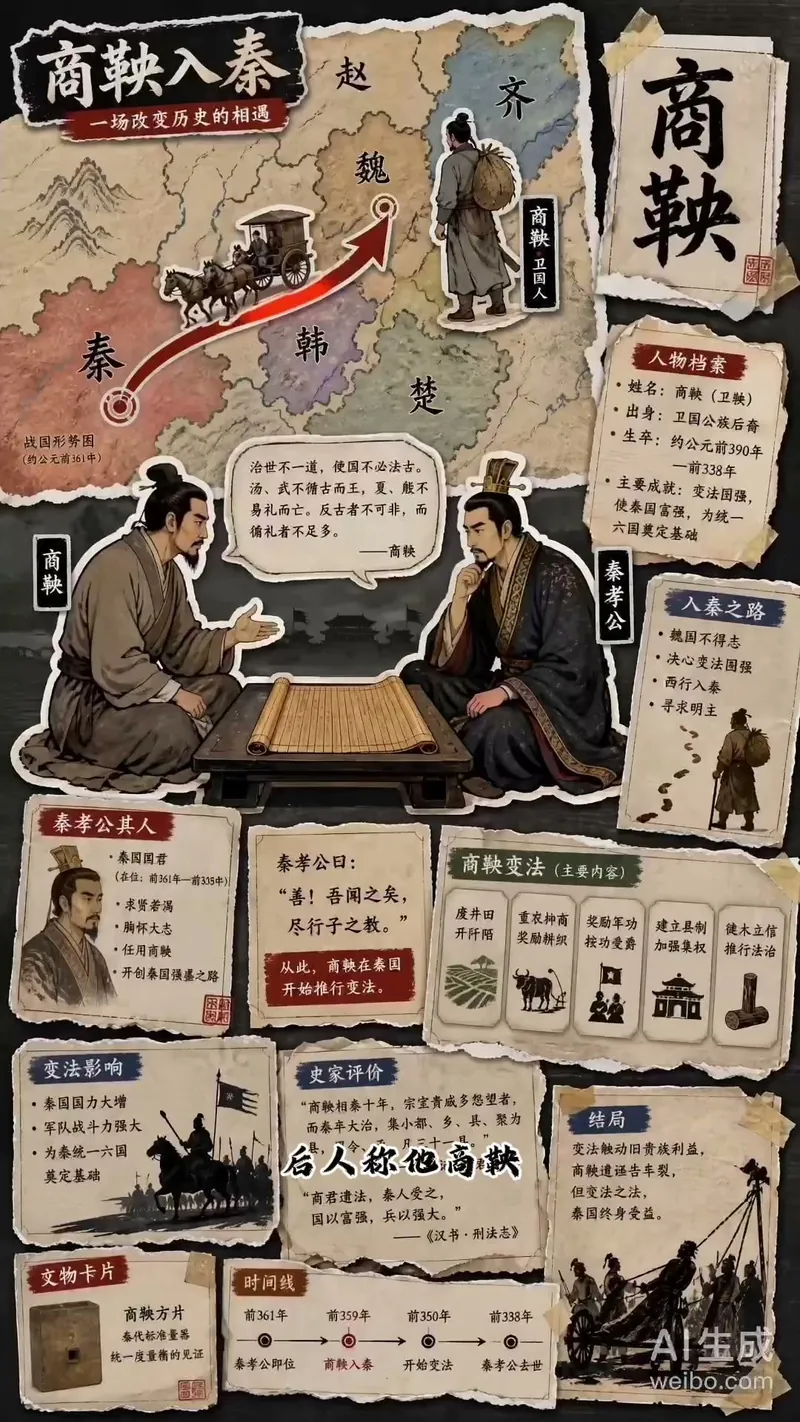
Vox-Style History Material Gen
Want to create engaging Vox-style content for history popular science short videos? The "Vox-Style History Material Generator" can turn any historical topic (such as figures, events, dynasties, reforms, wars, or systems) into a complete set of short video production materials. Just provide a historical topic, and it will generate an approximately 270-word, 45-second explainer script, along with 9 vertical 9:16 paper-cut collage style storyboard image generation prompts. The unique aspect of this skill is that it not only provides image generation prompts but also accurately matches 9 Seedance 2.0 image-to-video generation prompts for each storyboard frame. This means you can easily create historical explainer shorts with a "paper-cut collage" and "stop-motion animation" visual effect. Whether you're making history popular science animations, designing historical storyboards, or creating paper-cut collage keyframes for dynasties, reforms, wars, or historical figures, it offers an all-in-one solution. Through compact conversational copy and rich visual elements such as maps, coins, seals, and silhouettes, this tool ensures your video content is both informative and fun. The generated prompts strictly follow the principle that "video actions must correspond one-to-one with scene elements," ensuring smooth and natural image-to-video effects and avoiding disconnection between scene elements and animation effects. Make your historical short videos more visually impactful and content engaging.
 Video
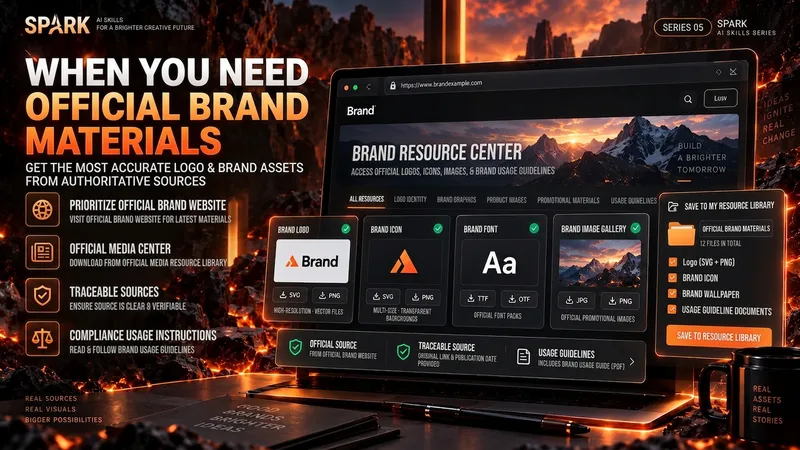
Spark | Video Asset Finder
One of the most time-consuming parts of making a video isn’t knowing that you need visuals—it’s finding assets that are actually right for the job. A brand Logo may exist on its official website, an older CDN, Wikimedia, Pinterest, and countless reposted pages. A search for a “warehouse photo” may return product images shot against backdrops, 3D renders, and completely irrelevant stock images. If you only look at the first few search results, it’s easy to bring the wrong version, a secondhand source, or questionable licensing into your final video. “Spark | Video Asset Finder” breaks asset collection into four modes: Query Discovery / Single Page Pull / Site Pull / Transcript → Asset Pull You can simply say, “Find OpenAI’s current official Logo,” provide a brand page for it to extract assets from, or submit a full video transcript or script. It will first determine which parts truly need real visual assets, then search for and verify them one by one. It does not treat search hits as evidence of usable assets, and it will not pretend a file was “downloaded successfully” when it could not be saved. Brand assets are sourced from official channels whenever possible. For non-brand visuals, it checks whether the image really depicts the target scene. Third-party reposts are used only as leads; for important sources and licensing, it tries to trace back to the original rights holder or a trusted licensing platform. The final deliverable is not a pile of scattered images, but a production-ready asset Manifest. Each item records the asset request, source page, image or file reference, version, license, save status, and why it was selected. Failed items and remaining gaps are preserved as well. Best for creators making YouTube videos, educational content, product introductions, technology and business content, documentaries and interviews, tutorials, reviews, and other videos that need real Logos, product images, people, places, scenes, or B-roll. How to use it Method A | Find official assets for a brand (Query Discovery) Give it: a brand, product, person, or place, plus the visual assets you actually need. Example: Find OpenAI’s current official Logo and the 3 most useful official brand visuals. Prioritize official sources; save them directly when possible, and clearly explain when saving isn’t possible. It will: prioritize official brand pages → verify each item → remove duplicates → save or reference assets → create a Manifest. Method B | Turn a video script into an asset list (Transcript → Asset Pull) Give it: a transcript, complete script, or storyboard text. Example: Here is my script for a video about global logistics. First determine which parts truly need a Logo, real warehouse footage, or port and container visuals, then find authentic, usable assets. Don’t add items just to fill the list. It will first break the script into visual requirements, then search for brand assets and real-world footage separately. Method C | Extract precisely from one official page (Single Page Pull) Give it: a specific webpage URL plus quantity or usage requirements. Example: Extract the 4 visual assets best suited for video production, using only this official brand page and its directly linked official files. Do not expand the search to third-party websites. Ideal for brand guidelines, product pages, press releases, media centers, and other clearly first-party pages. Method D | Find related assets within one website (Site Pull) Give it: an official website and the target assets. Example: On this company’s website only, find authentic photos and product visuals related to “automated warehouses.” Prioritize original images; do not collect navigation icons or decorative elements. Useful when a website has extensive content and the target assets are spread across news, product pages, customer stories, or a media center. Best inputs: Clear asset targets (brand, product, scene, person, or place) A complete transcript, script, or storyboard A specific official page URL A specified official website or domain The intended use (opening, corner Logo, B-roll, product introduction, customer story, etc.) Limits such as quantity, resolution, format, and licensing preferences If you care about requirements such as “must be official,” “must be a real photo,” “must be commercially usable,” or “search this domain only,” state them directly. The Skill will treat them as filtering requirements rather than after-the-fact notes.
Information
- Version
- v3
- Last updated
- Runtime credits
- Usage-based
- Models
- Auto
- Use cases
- Images & designVideo & audio
- What you get
- ImageVideoData